01
Piano roll and note length
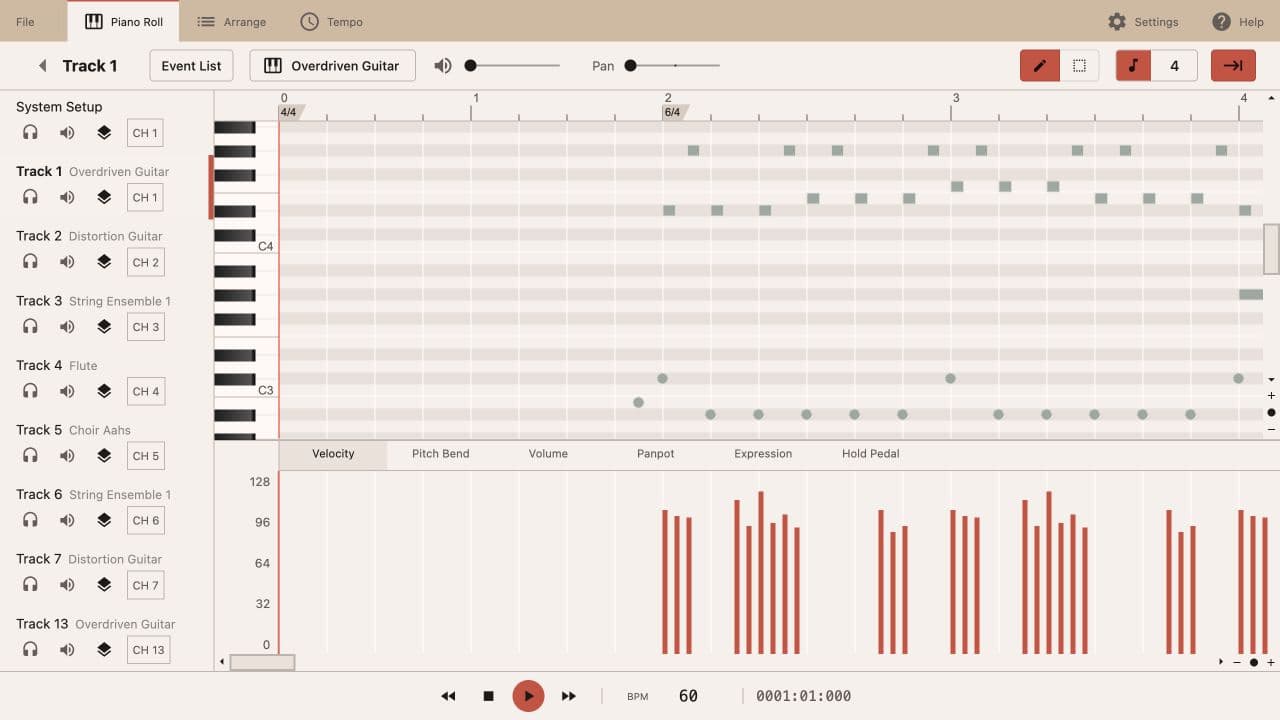
Inspect pitch and timing on the grid, then adjust note position, duration, or deletion without rebuilding the file.
MIDI Editor
Edit and download MIDI for free without signing in: open a file, generate a melody, convert audio, or draw notes directly in the piano roll.
MIDI workflow
Save, download or continue in your DAW
01
Open a standard MIDI file in your browser when you need to inspect an arrangement, correct a passage, or prepare notes for another music tool. The web workspace accepts .mid and .midi files up to 2 MB, requires no plugin, and can also start with an empty project. It edits MIDI data rather than converting audio, replacing a DAW, or adding effects and automation.
Inspect pitch and timing on the grid, then adjust note position, duration, or deletion without rebuilding the file.
Review expression and tempo changes when a passage needs a more deliberate rhythmic or dynamic correction.
Focus on one track and its General MIDI instrument when an arrangement contains several musical parts.
The piano roll places each note on a pitch and time grid so you can see the musical change you are making. Use it to add a missing note, move an event to a different beat, change its duration, or remove an incorrect note. Velocity controls help you review expression, while track selection, General MIDI instruments, and tempo controls keep multi-part arrangements organized. These controls are useful for note cleanup, arrangement checks, and small timing decisions before you hand the file to a larger production setup. They are editing controls, not automatic composition: the musical material remains yours to place and revise. For a reliable first pass, compare one short phrase before changing an entire track. Use the track list to isolate the part, inspect its note grid, and play the same bar again after each meaningful change. If a note is in the right place but sounds too strong or weak, review velocity; if the phrase drifts against the grid, inspect note timing or tempo. This makes the editor useful for diagnosis as well as cleanup: you can identify whether the problem is a single event, a whole track, or the source file itself. Keep the original file outside the editor so you can compare versions before committing to a larger arrangement.
02
Start with the source that matches the task. An imported .mid or .midi file preserves the arrangement you want to correct; an empty project gives you a clean grid for a short melody, exercise, or sketch. Once the project is open, work on the passage that needs attention instead of reworking the entire song. Listen to the result, save a history checkpoint when you want to keep the current version, and download the MIDI when it is ready for the next stage. The browser workflow keeps the first correction pass separate from larger audio, effects, or automation work in a DAW.
Choose a standard .mid or .midi file within the 2 MB limit, or begin with an empty project.
Work on the target passage in the piano roll and use the available track, instrument, velocity, and tempo controls.
Preview the edited version, save an edited version to history if needed, then download MIDI for the next tool.
03
Use an imported MIDI file when the musical structure is already useful and the job is a focused correction: a wrong pitch, an early entrance, an overly long note, or a part that needs a different instrument assignment. Start an empty project when you want to sketch a short idea without preparing an input file; you decide the notes and spacing, while the editor provides the grid and controls. If you have used the site's Audio to MIDI tool, open that generated MIDI here for note-level inspection and cleanup. Audio to MIDI creates the starting file; this editor is the follow-on workspace for MIDI changes. When the project needs audio tracks, effects, automation, or a larger arrangement, download the MIDI and continue in your DAW. Keeping those boundaries clear makes it easier to tell whether a problem belongs to the source, the MIDI notes, or the later production stage. An efficient handoff also depends on what you do before and after editing. Keep a short source passage when testing a correction, use the first playback to confirm the problem, and only then apply a note change. A saved history version is a checkpoint, not a replacement for a project backup. After downloading, check the MIDI in the next tool before adding more layers. If the issue is in the source conversion, return to the Audio to MIDI tool; use vocal isolation only when you need to separate a vocal track first.
Open Audio to MIDI04
The editor accepts standard .mid and .midi files up to 2 MB.
You can revise note position and length in the piano roll, review velocity, and work with tracks, General MIDI instruments, and tempo.
No. Use the site's Audio to MIDI tool to create a starting MIDI result, then open that result here for MIDI editing.
Yes. Download the edited MIDI when you need audio tracks, effects, automation, or a larger arrangement in your DAW.
Editing and downloading MIDI are free and do not require an account. You can save a local history on this device; sign in only when you want to save versions to your account history.
A MIDI file stores note, timing, velocity, and tempo data instead of recorded sound. Understand the MIDI data you can edit in the piano roll. Understand the MIDI data you can edit in the piano roll.